
The ƆBZ Redactor
A free CBZ metadata editor for Windows and Linux — read and write ComicInfo.xml without touching the page images, plus opt-in tools for oversized scans and CBR/CBT/CB7 conversion.
What a CBZ is
A CBZ file is a plain ZIP archive of sequentially-named comic page images, optionally with a ComicInfo.xml metadata file at its root — the de facto standard originating from ComicRack and documented by the Anansi Project. Not every CBZ has one; the ƆBZ Redactor creates one on save if it's missing, rather than requiring it up front. Its field handling was checked directly against ComicTagger's own source to stay compatible with what readers like Kavita actually expect.
Features
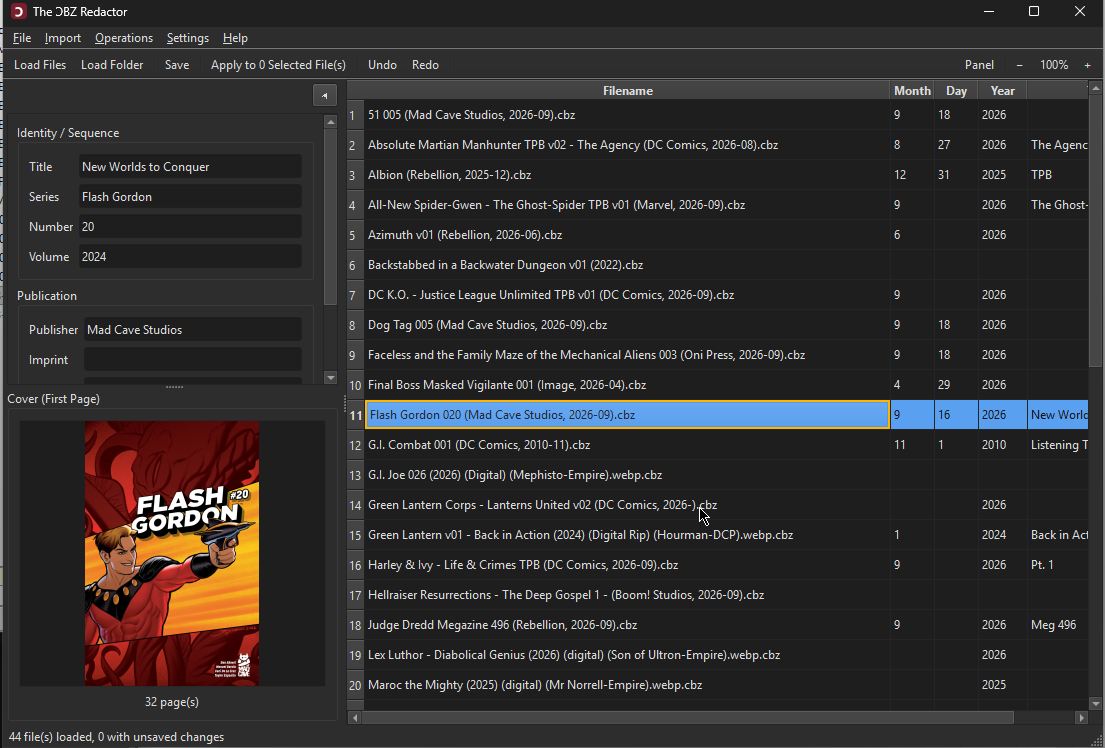
- Load one or many
.cbz(or.cbr/.cbt/.cb7) files, or a whole folder, into a sortable, column-configurable table; multi-select for editing, saving, or looking up several issues at once. - Bulk edit the full ComicInfo.xml v2.0 field set, plus draft v2.1 fields already understood by ComicTagger and Kavita (Translator, Tags, StoryArcNumber, GTIN) — a field left blank is left untouched, not cleared.
- Metadata lookups against Comic Vine, the Grand Comics Database, and Bedetheque, each with a cover preview and a confirm-before-write review step, and each matched issue's page recorded in Web.
- Manga lookup (Metadata > Look Up > Manga (AniList + MangaUpdates)…): searches AniList and MangaUpdates together, pairs the two answers by title and start year, and merges them: series title, summary, start date, genres and best-rated tags, author and artist (as Writer and Penciller), the publisher (the English one when known), the volume count of a finished series, the community rating, Manga = YesAndRightToLeft for Japanese manga and an adults-only age rating where AniList flags it. No key needed. Both are series databases, so every volume of a series gets the same answer (one request pair per batch) and the volume number is never touched; they hold no per-volume ISBN, date or cover. Other matching series are under Other Matches, the cover is shown for confirmation only, and if one service is down the other still answers. Data from AniList and MangaUpdates.
- Offline lookups in your own local copies: the GCD's downloadable database (milliseconds per file, no hourly limit), and your own ComicRack library, converted once from its
ComicDb.xml— only descriptions of comics are copied, never file paths or reading history. - Compare your ComicRack library with the GCD: series and issues the GCD doesn't have, and GCD issues missing credits, characters or a summary your library has — saved as spreadsheets, ready to contribute back.
- Read Filename Tags: scene-style filenames parsed into series, number, year and title, with bracketed tags sorted into Scan Information, Format and Notes — using pattern rules and a list of ~350 release groups. Only whole bracketed phrases count, so title words are never stripped.
- Overwrite review: any import that would replace metadata you already have shows old vs. new side by side, per field, per file, with a checkbox for exactly what to keep.
- Rename / Export / Move and its reverse, Parse Filename → Metadata, both built on a
%series% %number% - %title%-style pattern using any ComicInfo field. An optional ASCII-safe filenames option turns accented letters and typographic punctuation into plain ASCII (é→e, æ→ae, ß→ss). - Search/Replace and Case Conversion across any field, with a before/after preview and a per-row apply checkbox.
- Undo (up to 5 steps) for in-memory metadata edits — bulk edits, lookups, search/replace, case conversion and fixes — and File > Undo Last Rename for renames, even after a restart.
- Validate / Fix Issues: checks each ComicInfo.xml and proposes a fix per problem — page count out of step with the archive, impossible dates, scene tags or file extensions left in the series or title,
[nn]/#007issue numbers, stray spaces, language codes — reviewed per finding, applied as one undoable step. - Collection scan & report: on request, scans your whole organised collection into a small zipped CSV (only each archive's table of contents and ComicInfo are read), then reports what's out of place — files away from their series' folder, split series, file names that break their folder's pattern, duplicates, file names that disagree with ComicInfo, non-ZIP archives, missing ComicInfo, paths over Windows' 260-character limit. Optionally each cover is fingerprinted during the scan — kept in the scan file, or stored inside the CBZ as its ZIP comment (no extra file, no page or ComicInfo change) — so the report can confirm duplicates by cover and spot copies filed under different names. The folder layout is learned from the collection itself. The report is report-only: it never moves, renames, converts or rewrites anything. Each finding has a Fix with column naming the app action that fixes it (for example Repair > Convert to CBZ, Repair > Validate and Fix, or File > Rename / Export / Move), and Save List writes that column too.
- Preferences (Tools > Preferences…, Ctrl+,): the everyday settings in one dialog with four pages — Filenames (ASCII-safe filenames, zero-padding, Auto-Numbering padding), Conversion (what to do with CBR/CBT/CB7 files on load, originals to the Recycle Bin), Resize defaults and Paths (GCD local database, ComicRack library database, library root folder). OK / Cancel / Apply, and Reset to Defaults for the page you are on. It is the same dialog the other three Redactors have; settings keep their old places, so Export / Import Settings is unaffected.
- Genre and Language quick-pick lists, drag-to-reorder and hideable columns, and a resizable cover-image panel — all persisted across restarts.
- Size column: each comic's typical page width, color-coded — yellow for low-res (under 1000px), green for acceptable (1000–1599px), orange for oversized (1600px and up). Double-page spreads and a single huge cover don't skew it. A File Size column is available too.
- Resize Images: shrink oversized pages to a target width (1440px by default), with double-page spreads kept at double width. Optional height limit, optional JPEG or WebP output, and a one-click "only oversized files" mode. Never upscales; export copies or resize in place (the original goes to the Recycle Bin). Your choices are remembered between runs. When you convert a CBR, CB7 or CBT you are offered the same resize in the same pass, so the pages are only written once.
- Preview (File > Preview…, Ctrl+Shift+P, also in the right-click menu of one selected comic): a separate window that pages through the comic, to check in place that the pages are in order, the last page is intact and the cover matches. The page is fitted to the window (or to its width with Fit width); First / Previous / Next / Last, Left / Right, Page Up / Page Down, Home and End navigate. Only the page on screen and the next one are read from the archive, in the background; the window never writes to it.
- Include Subfolders (File > Include Subfolders, on by default, shared by all four apps): Load Folder and Refresh List follow it, and folder scans run under a progress dialog. Untick it to load just the folder itself.
- Macros: the Rename / Export / Move macros are Ctrl+Shift+1 to Ctrl+Shift+5 (Ctrl+Alt+1..5 is AltGr+1..5 on a Norwegian or other European keyboard, so typing could run one by accident). Save All is Ctrl+Shift+A only.
- History (Tools > History…, opt-in, off by default): once you turn it on under Tools > Preferences > History, every change to a file’s ComicInfo.xml tags (Save, Redact, the command line’s
set) is recorded with the old and new value, and Restore Old Values writes them back, even after the app was closed; the pages are copied untouched. It follows a file when it is renamed, moved or converted to CBZ, and Delete History sends the file to the Recycle Bin. The on/off setting is part of Export / Import Settings. - Progress for everything slow: Redact runs each file on a worker thread so the window stays responsive and Cancel works, and validation stamping, Find Duplicates, Collection Report moves, Check File on the databases, Test Login and every Comic Vine request show a progress dialog. Replacing an original sets it aside until the new file has taken its name, and only then sends it to the Recycle Bin.
- Page preview: the cover panel can turn pages (arrow buttons, Left/Right keys or Ctrl+wheel) to look beyond the first page. Pages are read only when you ask for them.
- Apply with nothing selected: type tags in the left-hand panel with no file selected and Apply to All Files writes them to every loaded file (it asks first for larger batches), only for the fields you filled in.
- Tag Low-Res Scans: marks low-res comics with a
Low-res scantag in ComicInfo.xml so you can find and replace them later — here, or in a comic server like Komga or Kavita. - Scanner credit pages: tick a "scanned by" page once and it's remembered; every file containing it is flagged and can have it removed — matched visually, so it's recognised even after resizing or re-encoding.
- Find Duplicates: the same comic loaded more than once, matched by its pages rather than its name, with the best copy suggested (highest resolution, most pages, best-tagged).
- Clean Up Archive Contents: three separate options, each ticked or not as you like — Remove junk files (Thumbs.db, .DS_Store, __MACOSX, .nfo, .sfv ...), Move pages out of folders (pages keep their own names where that is safe; a short sequence number goes in front only where two names would clash or would not sort in reading order) and Rename pages to 001, 002, .... Page order never changes, and a file that nothing would change is left untouched. In Redact the step now defaults to junk and folders on, page renaming off.
- CBR, CBT and CB7 support: list them unconverted and convert from the table, convert automatically on load, or be asked each time. An Ext column shows each file's real format, so a ZIP renamed to
.cbris caught (and converted by a simple copy). Every conversion is verified before anything else happens, and originals are kept or moved to the Recycle Bin — never permanently deleted.
Scripting: every one of these has a command-line counterpart where it makes sense (info, set, convert, rename, move, redact): see the command line guide below.
Redact, and everything since
Everything below is in the current release. Redact is the one-click path; the individual tools above remain available.
Redact steps: convert CBR/CB7/CBT to CBZ, clean up archive contents, fill empty fields from the filename, the folder path and a database (local GCD or ComicRack first, then Comic Vine when a key is saved), fix ComicInfo issues, and tag low-res scans. Optional, off by default: rename by pattern, fill empty fields from AniList and MangaUpdates (for a manga library), remove known credit pages, resize oversized pages to 1440 px, and move into folders.
- Redact: one click on the toolbar (or Edit > Redact, Ctrl+Shift+E) runs an editable recipe of steps on the selected files, or on all loaded files after asking. Each changed file is saved in place and its original goes to the Recycle Bin, so the Recycle Bin is the undo. Guesses are applied only at or above a confidence threshold (90% by default); weaker ones are listed under Needs review and never written. Files with unsaved edits or that failed to load are skipped and named in the report. A saved recipe keeps the patterns it was saved with (the editor shows a pattern trail of where each pattern comes from), so changing the Rename / Export pattern later does not silently change what Redact does.
- Move into folders: Rename / Export / Move has a third mode that files each item into a folder tree under a library root, using a pattern with
/in it. The preview shows each new path, nothing is overwritten (a taken name gets “(2)”), and File > Undo Last Rename puts everything back and offers to remove the folders the move created. - Metadata from the folder path: Parse Filename also reads folders. A pattern containing
/is matched against the file name and the folders above it, counted from your library root, with a confidence shown per file. Redact has a matching step that fills only empty fields. - Export / Import Settings (File menu): your recipe, pattern history, column layout and defaults in one JSON file for a new install or a second computer. Import shows every change before applying anything. Passwords, API keys and tokens are never included; tool paths and folders are offered unticked as “this computer only”.
- Command palette (Ctrl+K): type part of any menu command to find and run it. The menus follow one layout in all four apps: File, Edit, View, Metadata, Repair, Tools, Help. Open in Default App is in the right-click menu, and Ctrl+Shift+A saves every changed file (Save All).
- API keys stay out of the settings file: the Comic Vine key and the GCD account are stored in your operating system’s credential store (Windows Credential Manager, macOS Keychain or the Linux keyring), entered in one Tools > API Keys… dialog that never shows the stored value. Where there is no credential store, the app asks before falling back to an unencrypted file.
- Validation stamp: Validate / Fix Issues records the result (OK, or ISSUES while something is left to fix) and the time inside the CBZ, in a small
<RedactorScan>element in ComicInfo.xml, written when you Save. Other readers such as ComicRack, Kavita and ComicTagger skip it. If the pages change afterwards, the Status column says “(changed since)”. - Collection tools (Scan Collection Folder, Collection Report, Compare Library with GCD) live in a Collection submenu under Tools.
- Archives from older tools keep their names: page and folder names without the ZIP “UTF-8” flag are shown correctly when their bytes are really UTF-8 (and Save flags them, repairing the file for other readers); names in a local code page are kept byte for byte rather than guessed. The collection scan and the editor now use one rule for finding
ComicInfo.xml(a root one wins, otherwise the shallowest nested one), and Save writes a nested one at the archive root. - Safer saves: Save, Remove Pages, Clean Up and Resize share one rewrite routine; the original is replaced only by a finished, checked copy, temp files are cleaned up after any failure, a failed conversion fails just that file instead of stopping the batch, and CBT archives are extracted without following
../names, absolute paths or links. - Progress box fix: a “Scanning…” (or similar) progress box could stay on screen for good after its work had finished, when the work took about a third of a second or more. It now closes together with its work.
Where the metadata comes from
The ƆBZ Redactor works on its own: editing, Validate / Fix Issues, resizing and conversion need no outside source. Lookups are optional, and every one is a review-then-Apply step. Online sources are only asked when you run a lookup. Local databases are built from files you download or already own; the app never bundles or downloads them. Redact uses a local database first when one is set up, then Comic Vine when a key is saved, and applies only matches at or above its confidence threshold. The hub has all four apps side by side.
Online sources
| Source | What it provides | What you need | Notes |
|---|---|---|---|
| Comic Vine | Series, issue title, summary, date, creator credits, characters / teams / locations, publisher; the issue’s Comic Vine page goes in Web. | Your own free Comic Vine API key. You register for it yourself; it is stored in your operating system’s credential store. | Metadata > Look Up > Comic Vine. |
| Grand Comics Database (web API) | The same fields from GCD, with structured credits; the issue’s GCD page goes in Web. Needs a series name and an issue number. | No key. An optional free GCD account raises GCD’s hourly limit for anonymous use; the password is stored in your credential store. | Metadata > Look Up > Grand Comics Database. GCD data is under the licence described in Data and licences. |
| AniList and MangaUpdates (manga) | Series level only: title, summary, start date, genres and tags, author and artist, publisher (the English one when MangaUpdates has it), volume count of a finished series, rating, Manga flag and age rating; AniList’s page goes in Web. Nothing per volume (no ISBN, date or cover). | No key. Two free public APIs; AniList’s request limit is low, so requests are spaced and a series is asked about once per run. | Metadata > Look Up > Manga, and the Redact step “Fill empty fields from AniList and MangaUpdates (manga)” (off by default). Credit: data from AniList and MangaUpdates. |
| Bedetheque | Francophone comics (bande dessinée): credits, publisher, date, ISBN, summary; the album’s page goes in Web. Needs a series name and an issue number. | No key. Read from Bedetheque’s web pages, one issue at a time, through a Cloudflare-passing helper (cloudscraper), not from an official API. | Because it reads web pages, it can stop working if the site changes. |
Local (offline) sources
| Source | What it provides | What you need | Notes |
|---|---|---|---|
| GCD data dump (SQLite) | Series, title, date, genre, characters, publisher, language, structured credits (writer, penciller, inker, colorist, letterer, editor) and the issue’s GCD page. No cover images. | You download GCD’s SQLite dump yourself from comics.org (a free account is needed to download it; current.zip is about 2 GB and holds a database of about 7 GB) and point the app at the unzipped .db file. The app only reads it. |
Milliseconds per file, no hourly limit. Tools > GCD Local Database explains the steps. |
| Your ComicRack library | Series, issues, credits, characters, summaries and the Comic Vine link, from your own library. File paths, sizes and reading history are never copied. | Your own ComicDb.xml (plain or zipped); Tools > ComicRack Library Database converts it once into a local database (about 30–40 seconds for 234,000 books on the author’s library). |
Also feeds Compare ComicRack Library with GCD, which saves what your library has that the GCD lacks (and the reverse) as spreadsheets. |
From the file itself
- The filename: Read Filename Tags and Parse Filename read series, number, year and title, and sort scene-style bracketed tags (scan group, format, notes).
- The folder path: a pattern with
/reads the folders above the file, counted from your library root; Redact has a matching step that fills only empty fields.
Licences and required acknowledgements for these sources are collected under Data and licences on the hub.
Command line
The ƆBZ Redactor can be driven from a terminal, a batch file or Task Scheduler. It is the same program: there is no second download. cbzredactor.exe with a command name as its first argument runs that command and never opens a window; with no arguments, or with a file or folder, it opens the window as before. The commands use the same code as the window, so they give the same results, and not every window function has a command: these are the ones meant for scripting.
| Command | What it does |
|---|---|
info | Show each comic's format, page count and ComicInfo fields. |
set | Set or clear ComicInfo fields (-s Series=Saga -s Number=3, --clear Notes) and save in place. |
convert | Turn CBR, CB7, CBT (and a .cbz that is really another format) into a real .cbz beside the original; --resize shrinks the pages in the same pass. |
rename | Rename from the metadata with a pattern such as %series% %number% - %title%. |
move | Move or copy into a folder tree under your library root, %publisher%/%series%/%series% %number%. |
redact | Run the same Redact recipe as the window: convert, clean up, credit pages, resize, fill from the file name and path, lookups, validate and fix, tag, rename, move. |
cbzredactor info "D:\Comics\Saga" --fields series,number,year
cbzredactor set "D:\Comics\Saga" -s Publisher="Image Comics" -s Year=2012 -n
cbzredactor convert "D:\Incoming" --resize --trash-original
cbzredactor rename "D:\Comics\Saga" -p "%series% %number% - %title%" --zero-pad 3 -n
cbzredactor move "D:\Incoming" -p "%publisher%/%series%/%series% %number%" --root "D:\Library"
cbzredactor redact "D:\Incoming" --disable lookup --trash-dir "D:\Trash" --json -o report.json
Every command takes comics, folders (searched recursively; -R for the top level only) or wildcards. Every command that changes comics has -n / --dry-run to preview the result first. --json prints one JSON document instead of text, -o FILE writes the result to a file, and -q silences progress. The exit code says how it went: 0 done, 1 some comics failed, 2 bad arguments, 70 an internal error, 130 interrupted.
- Nothing is overwritten: a taken name gets
(2),(3), and a file the pattern gives no name for is skipped, not called “untitled”. A mistyped%token%is refused instead of silently rendering as nothing. - Nothing is deleted for good: an original replaced by Redact or a conversion goes to the Recycle Bin, or to the folder you give with
--trash-dir, for a machine that has none. - No undo: unlike the window, the command line is not recorded in the app's rename log. Preview with
--dry-run. - Your settings apply: the saved Redact recipe, library root, offline databases, and the zero-pad and ASCII choices from the Rename window are what the commands use, unless a flag says otherwise (
--recipe FILE,--root,--zero-pad,--ascii).
A Comic Vine key is read from the COMICVINE_API_KEY environment variable if it is set, else from the app's saved one. A CBR, CB7 or CBT is skipped by set, rename and move until it has been converted.
Using it from scripts (Windows)
The Windows program is a windowed one, so an interactive shell does not wait for it. For automation ask for the result in a file, wait for the process, and read the exit code:
cbzredactor.exe redact "D:\Incoming" --json --output "%TEMP%\redact.json"
if errorlevel 1 echo something failed

start /wait cbzredactor.exe redact "D:\Incoming" --quiet

# PowerShell
$p = Start-Process cbzredactor.exe -ArgumentList 'redact','D:\Incoming','--json','-o','C:\Temp\redact.json' -Wait -PassThru
$p.ExitCode
In a batch file write %% for each % of a pattern (-p "%%series%% %%title%%"), as cmd expands a single %name% itself. On Linux the program behaves like any command-line tool. The full reference, with every option and JSON field, is in the repository README.
Requirements
Two downloads on each release: a standalone .exe for Windows, and cbzredactor-linux-x86_64.tar.gz for 64-bit Linux (Ubuntu 22.04+, Debian 12+, Fedora 36+, Mint 21+ and the like — unpack and run; settings live in ~/.config/cbzredactor/). No separate Python install needed on either. Full details and the changelog are in the GitHub repository.
Inspirations
Two older tools shaped parts of this one — no code from either is used:
- ZenCBR by the late Shannon Larratt — the scene-tag handling behind Read Filename Tags (matching whole bracketed phrases against a learned list of release groups) and its name-cleaning rules. The built-in tag list was seeded from a ZenCBR training list.
- CbxConverter by tomek-o — the Size column and the Resize Images options (height limit, output format, width presets), done here in-process with Pillow instead of ImageMagick.
The rest of the family
The ƆBZ Redactor shares its UI and core editing patterns with three sibling tools, via redactor_common:
 The ƎPUB Redactor
 The ɯP3 Redactor
 The Ʌideo Redactor
 Dossier
 Pluteus
 All the Redactor Tools
 Kinderkopje